FortiGate firewalls are the primary line of defence against security threats coming from open Internet. The increasing sophistication in cyberattacks make it difficult to solely rely on firewalls for network protection. The NGFW firewall like FortiGate provides unified threat management with hybrid mesh firewalls which provide capabilities behind traditional packet filtering firewalls with add on features like application awareness, control, integrated intrusion prevention, cloud delivered threat intelligence etc.
In today’s topic we will learn about web filtering configuration in FortiGate firewall.
What is Web Filtering?
In order to regulate web usage and ensure productive online environment organizations rely on web filtering technology. This allows organizations to define and enforce policies of internet access for its employees. Organizations want to limit content their employees see or access online. Web filtering feature blocks inappropriate content in the workplace. Web filtering protects organization bandwidth and provides protection against malicious content.
How to Configure Web Filtering in FortiGate
With FortiGate web content filtering, we can control access to web content by blocking web pages having specific key words and patterns. This helps in prevention of access to pages with inappropriate material.
Step 1:
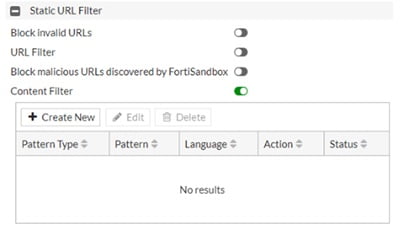
Go to Security profiles🡪 Web filter go to static URL filter section and enable ‘Content filter’. This will display its options.
Related: URL Filtering vs Content Filtering
Step 2:
Choose ‘Create new’ to display filter options. For Pattern type choose ‘regular expression’ and enter desired keyword in Pattern field (example: Marketing) as depicted in figure below
Leave language as ‘Western’
Action – ‘Block’
Status – ‘Enable’
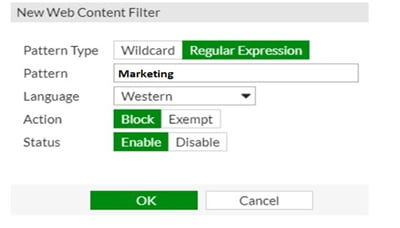
Select Ok and see Static URL filter section for update
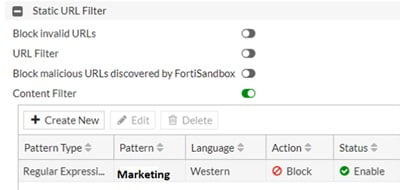
Now you can validate the configuration by visiting the website with the word you defined in the pattern filter.
Flow-based Web Filtering
We can also do flow-based web filtering in FortiGate which comes with following options:
Authenticate – For specific website categories authentication is required
Warn – Allows user to continue browsing website but with a warning
Override – Allow users having valid credentials to override <web filter profile>
Related: Cisco FTD URL Filtering: How does it work?
Enable authenticate and warning filter
Step 1: Go to Security Profiles 🡪 Web filter in FortiGate GUI
Step 2: Right click selected category, view context menu
Step 3: Choose ‘Authenticate’ or ‘Warning’
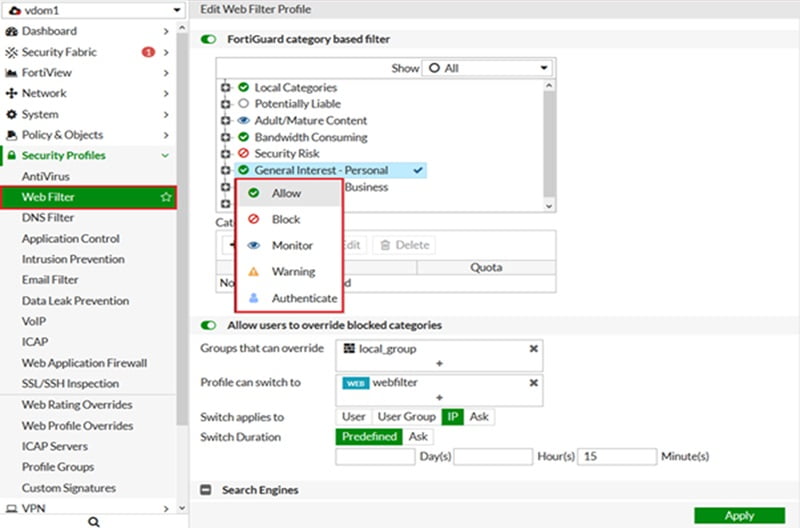
Step 4: Select Apply
To allow users to override blocked categories
Step 1: Choose ‘Allow users to override block categories’
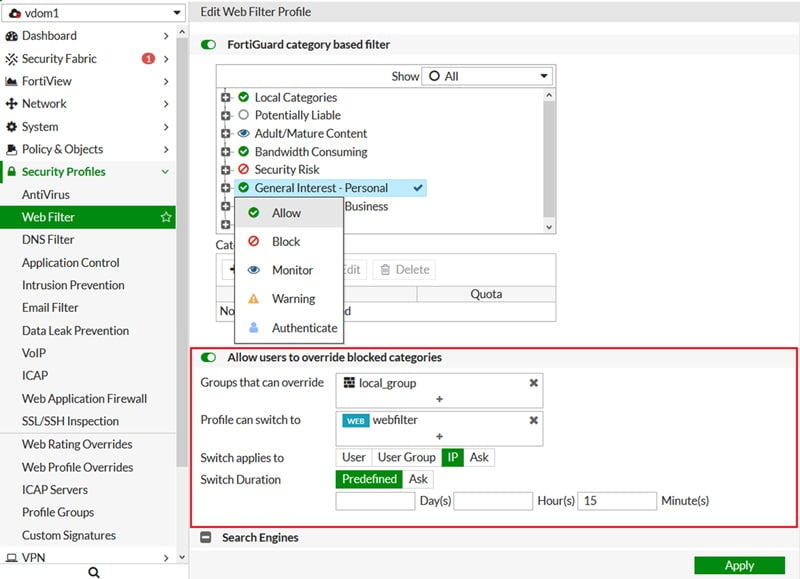
Provide below information
- Groups to override
- Profile can switch to
- Switch applies to
- Switch duration
Step 2 : Choose Apply