Site to Site VPN is connection between two or more networks used widely by enterprises to leverage Internet connection between private traffic in lieu of using private MPLS circuits. Site to site VPNs used by enterprises offices dispersed across geo locations which need to access and use corporate networks.
In today’s topic we will learn about configuring site to site VPN between Fortigate and SonicWall using dynamic DNS as a peer. Site to site VPN use to provide uninterrupted and secure communication.
Related: Introduction to Sonicwall Firewall
Establish: Site-to-site VPN between FortiGate and SonicWall with Dynamic DNS
Let’s look at the prerequisites before we start the configuration steps.
- Admin access to both FortiGate and SonicWall firewall interfaces
- FortiGate version 6.x or beyond
- SonicWall version 6.x or beyond
- Networking and firewall basic configuration
- Active dynamic DNS account for both devices
Step 1: Configure FortiGate DDNS and FortiGate
- Goto network 🡪 DNS
- Enable FortiGuard DDNS
- Choose the interface having dynamic connection
- Choose server having an account
- Enter unique location
- Click Apply
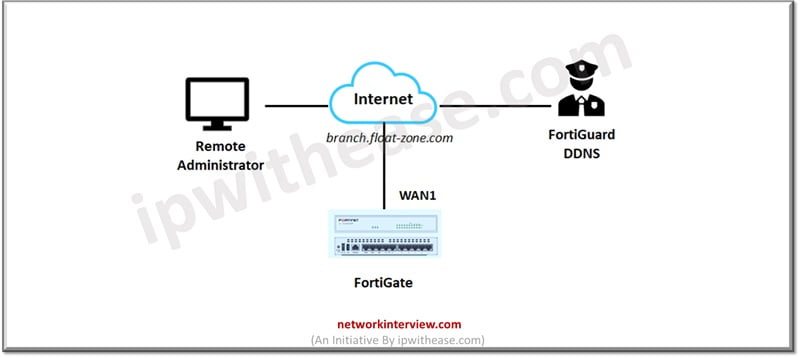
To configure DDNS using CLI
config system ddns
edit 1
set ddns-server FortiGuardDDNS
set ddns-domain “branch.float-zone.com”
set monitor-interface “wan1”
next
end
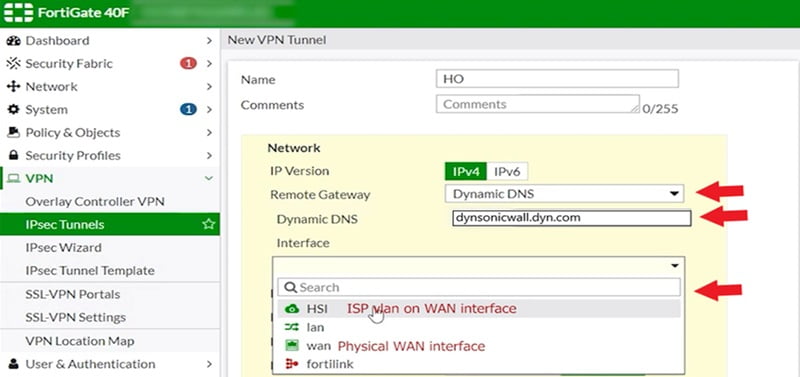
Goto VPN🡪 IPSec tunnels. Create a new tunnel and for the remote gateway select ‘Dynamic DNS’ and provide SonicWall remote DDNS name and choose the external interface (WAN) which is required to communicate to SonicWall.
Select ‘Aggressive Mode’ and under ‘Peer options’ 🡪 Accept types, select ‘Specific peer ID’ and in ‘Peer ID’ field provide SonicWall remote DDNS name.
In ‘Phase 1 (P1) proposal, ensure all proposals selections are corresponding to proposals of SonicWall. The local ID field provides the FortiGate Dynamic DNS name.
Configure ‘Local address’ and ‘Remote address’ to mention traffic of interest between local and remote sites and selected networks ensured to match as defined in SonicWall interface.
In Phase 2 (P2) proposals selections are corresponding to proposals in SonicWall. Enable Auto-negotiate to ensure proper functioning.
Step 2: Configure SonicWall DDNS and SonicWall
- Login into SonicWall management interface
- Choose Network in navigation menu
- Choose DNS 🡪 Dynamic DNS
- Click on ‘Add’
- ‘Add DNS profile is displayed’
- Click Ok
- Check if profile is ‘Enabled’ and status shown as On-line and correct IP is reflecting
Once DNS is working fine, then setup the DDNS to allocate a domain name to SonicWall external interface (WAN) which will act as a peer to FortiGate device.
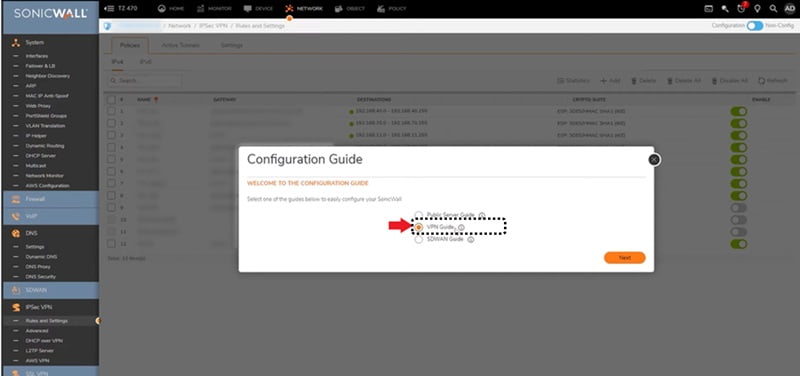
- To setup VPN goto Wizard section and choose “VPN Guide’
- Select site-to-site VPN option
- Fill the form by choosing the name for ‘Policy name’. Activate ‘I know my remote peer address or FQDN option and provide FortiGate Dynamic DNS name in ‘Remote Peer IP address’ or FQDN. Choose ‘Next’.
- In ‘Network selection’ tab choose ‘local’ and ‘destination network’
- In the ‘destination’ network (If not set up yet), create by selecting the ‘create new address object’ option from the drop down menu.
- Provide ‘Name’, select ‘Appropriate zone assignment’ and ‘type’ and provide destination network and mask and save.
- After selecting desired local and destination network click next
- Select appropriate proposals and ensure they are matching FortiGate configuration
- Click Apply
- Under VPN section choose ‘Rules and settings’ and edit the tunnel
- Modify both local and peer IKE IDEs from IPv4 address to domain name
- Enter the SonicWall Dynamic DNS name for ‘local IKE ID’ and FortiGate Dynamic DNS name for ‘Peer IKE ID’.
- Review all configurations
- Select appropriate ‘Local network’ and ‘destination network’ to mention traffic of interest between local and remote sites
- Selected networks need to match as defined in FortiGate
To verify and test go to FortiGate:
monitor 🡪 IPSec Monitor
VPN shall appear as active
Continue Reading:
IPSec VPN Configuration: Fortigate Firewall
Site to Site VPN Configuration on FTD