Cisco FTD NAT: Introduction
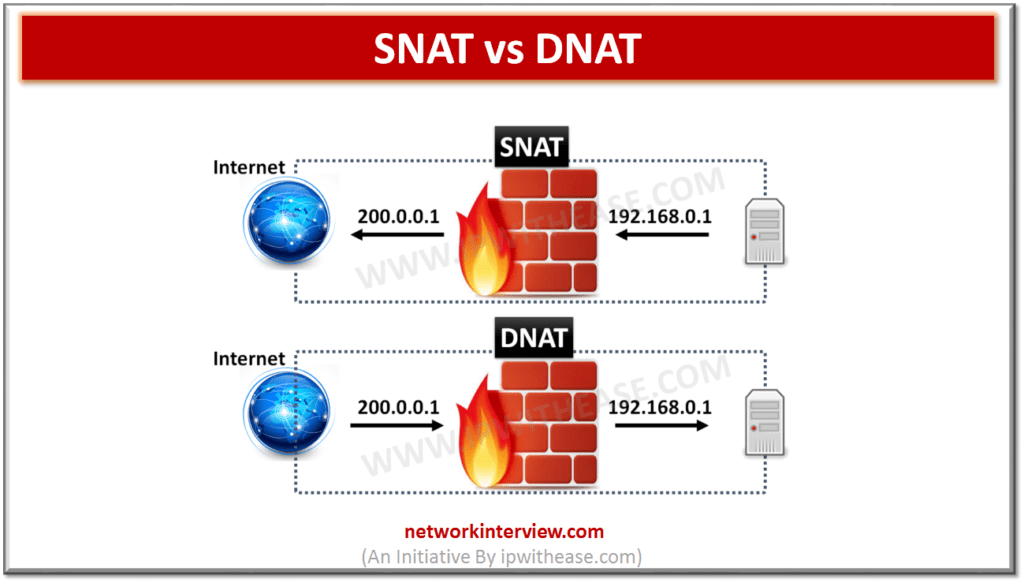
An IP address is the basis of every communication over the network and Internet. Each computer device is assigned an IP address within an IP network which identifies the host as a unique entity. But due to shortage of IPv4 addresses most of the IP addresses are private and not routable anywhere outside of private enterprise networks. NAT or network address translation enables private IP addresses to connect to the Internet. NAT converges on public addresses because it can be configured to advertise at a minimum only one public IP address for the entire network to the external world.
In today’s blog we will cover in detail about how NAT can be configured on FirePower Threat Defence.
Examples of types of NAT can be configured on FTD
Cisco NAT is one of the most basic functions for any device like a firewall. With NAT it is possible to access the Internet with a private IP address or give access from the Internet to the services with a private IP address. Cisco FTD NAT can be configured in many ways as under:
- With Source NAT for internal users having private IP address to connect to Internet
- With Destination NAT for users on Internet, connect to organization servers with private IP address
- With Static NAT and dynamic NAT having one to one mapping between real address and translated address or many real addresses translated to one or few addresses
- With Policy NAT – match traffic based on specific source and destination address and port number
- With identity NAT exclude some traffic to translate over VPN tunnels
Cisco FTD NAT Configuration
We will use below table example to demonstrate Cisco FTD NAT configuration
NAT type | Example |
| Source NAT | |
| Static NAT | 190.162.10.11 à 190.162.1.11 (bi-directional) |
| Dynamic NAT | 190.162.10.2-5/24 à 190.162.1.2-5 |
| PAT | 190.162.10.5-11/24 à outgoing interface IP (190.162.1.101) |
| Destination NAT | |
| Static NAT | 190.162.10.11 à 190.162.1.11 (bi-directional) |
| PAT | 190.162.10.10:23 à 190.162.101.23 190.162.10.11:22 à 190.162.101.22 |
| Policy NAT | src: 190.162.10.11/dst: 190.162.1.111àtranslated src: 190.162.1.166 |
| Identity NAT | src: 192.162.0.0/16/ dst: 192.160.0.0/16 à no translation |
Source NAT: Static NAT
We configure to translate IP address 190.162.10.11 in the inside zone to 190.162.1.1. Static NAT is bi-directional by default and if both static and dynamic NATs are configured, static NAT has higher priority to take precedence.
To implement NAT for the first time, create a policy and choose an FTD device on which we will configure NAT rules.
Devices -> NAT -> New Policy -> Threat Defence NAT -> New policy
To implement static NAT create and Auto NAT rule and mention ‘Source interface’ and ‘destination interface’ IP address
Source Interface – real address ‘190.162.10.11’
Destination interface – translated address ‘190.162.1.11’
To test this configuration, send ping traffic from system behind FTD with address 190.162.10.11 to address 8.8.8.8 where source address will be translated to 190.162.1.11 when it is forwarded by FTD.
Source NAT: Dynamic NAT
It is almost the same as static NAT except the translated address is chosen from a pool. Let’s create two lists one with a real IP address range from 190.162.10.2-5 and 190.162.1.2-5 range for translated address.
When you send a ping from IP address 190.162.10.2 it will be translated to 190.162.1.2 and when you ping from 190.162.10.4 then it will be translated to 190.162.1.4.
Source NAT: PAT NAT
In PAT many addresses can be mapped to a single or few addresses. We will configure IP address range 190.162. 10.5-11 to a single FTD outside IP interface address 190.162.1.101. Enable PAT pool and Auto NAT rule.
To verify ping 190.162.1.8 and 190.162.1.9 will be translated to 190.162.1.101 which is IP address of FTD outside interface
Destination NAT: Static NAT
In an earlier created static rule we mapped IP address 190.162.10.11 inside zone to IP address 190.162.1.11 in outside zone since static NAT is bi-directional this mapping will work vice versa also. so, when you access 190.162.1.11 from outside zone you will be connected to 190.162.10.11
Destination NAT: PAT NAT
When you access 190.162.1.101 and port 23 from the outside zone you will be connected to a server with IP address 190.162.10.10 with the same port number inside the zone.
When you access 190.162.1.101 and port 22 you will be connected to a server with IP address 190.162.10.12 with the same port number inside the zone.
Policy NAT
Policy NAT is implemented by manual NAT to have more flexibility to match and translate or just not translate any source or destination IP address. There are two options in policy NAT – ‘Before Auto NAT’ and ‘After Auto NAT’.
With ‘Before Auto NAT’ manual rules takes precedence in processing and with ‘After Auto NAT’ there priority is lesser and will be processed if traffic do not match Auto NAT rules.
The src IP address 190.162.10.11 will only be translated to 190.162.1.177 only when the destination of the traffic is 190.162.1.111 else it will match static rule which translate source IP address 190.162.10.11 to IP address 190.162.1.11.
Identity NAT
In this NAT there is an option to exclude the traffic. Usually it is implemented over VPN connections since traffic over VPN does not require translation; moreover VPN and NAT are also not compatible technologies.
Traffic between 190.162.0.0/16 in the inside zone and 190.162.0.0/16 in the outside zone are exempted from NAT because they are internal subnets.
Cisco FTD NAT Implementation
Cisco FTD NAT is implemented in two different ways. Source and destination Network Address Translation (NAT) are implemented using Automated NAT. Policy NAT and Identity NAT, on the other hand, are implemented by means of Manual NAT.
Auto NAT
As we know, source NAT & destination NAT are implemented by Auto NAT. Both source and destination NAT can also be implemented using Manual NAT, however, the opposite is not possible. Complicated NAT scenarios cannot be implemented when using Auto NAT. When using Auto-NAT, the translation is associated to an object that has either the actual source addresses or the destination addresses, not both together. Auto NAT is not compatible with object group.
Manual NAT
With Manual NAT, you have the option to modify or keep the source and destination address unchanged together. Moreover, you can opt for either an individual object or an object group for both the real address and the translated address. Therefore, it is much more flexible.
Continue Reading:
Checkpoint NAT Policy: Types & Configuration
NAT Configuration & NAT Types – Palo Alto